Introducing AI Video & Image Enhancer: 2× Upscaling
Meet CinLink’s AI Video & Image Enhancer: upscale videos and images to 2×, reduce noise, and keep editing with natural language prompts.
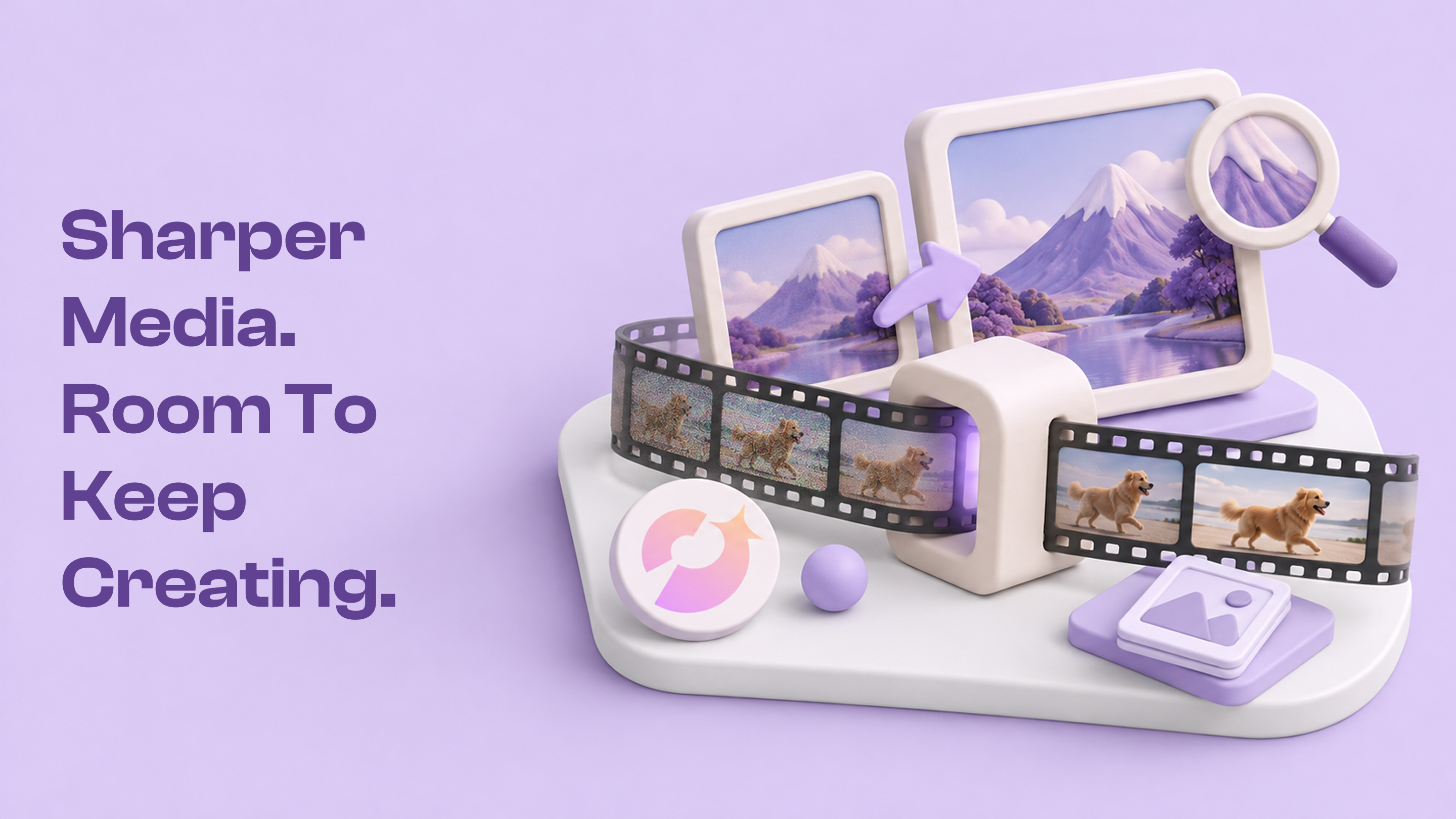
Some media is worth keeping even when the picture could use a little help: an older clip you want to reuse, a product photo that needs more room in a layout, or an illustration you want to bring into a video.
We're introducing CinLink's AI Video & Image Enhancer, with 2× upscaling and noise reduction for videos and still images. Add your media, describe what you want to improve, and review the result before saving it or continuing your edit.
What's available
- 2× video upscaling: increase the width and height of lower-resolution footage while preserving its original audio, frame rate, and proportions.
- 2× image upscaling: enlarge photos, illustrations, and graphics for thumbnails, layouts, and other projects.
- Noise reduction: reduce visual noise as part of the enhancement workflow.
- Ready-to-use exports: save enhanced videos as MP4 files and enhanced images as PNG files.
- Prompt-based editing: request enhancement in the same workspace where you can continue with captions, cropping, and other edits.
A clearer starting point for video
When you reuse a lower-resolution clip, increasing its size can make noise and rough edges more noticeable. CinLink processes the picture frame by frame to upscale footage and reduce visual noise, while keeping the original audio, frame rate, and aspect ratio.
Start with a simple request:
Upscale this clip to 2× and reduce the noise.
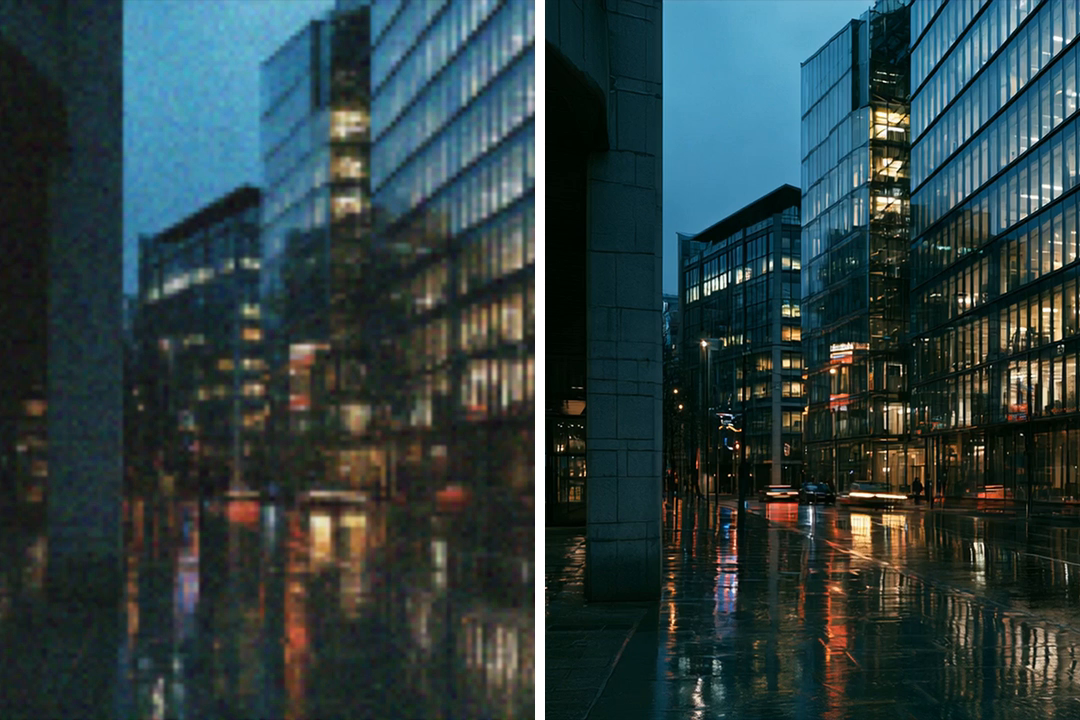
This can be useful when preparing an archived clip for a new edit or improving the starting material for a social video. Review the enhanced version in motion as well as on a paused frame, especially around faces, fine textures, and moving edges.
More room for your images
The same workflow works with still images. Enlarge a product photograph for a larger layout, prepare an illustration for a video project, or give an existing image more room in a thumbnail design.
Enlarge this image to 2× with light noise reduction.
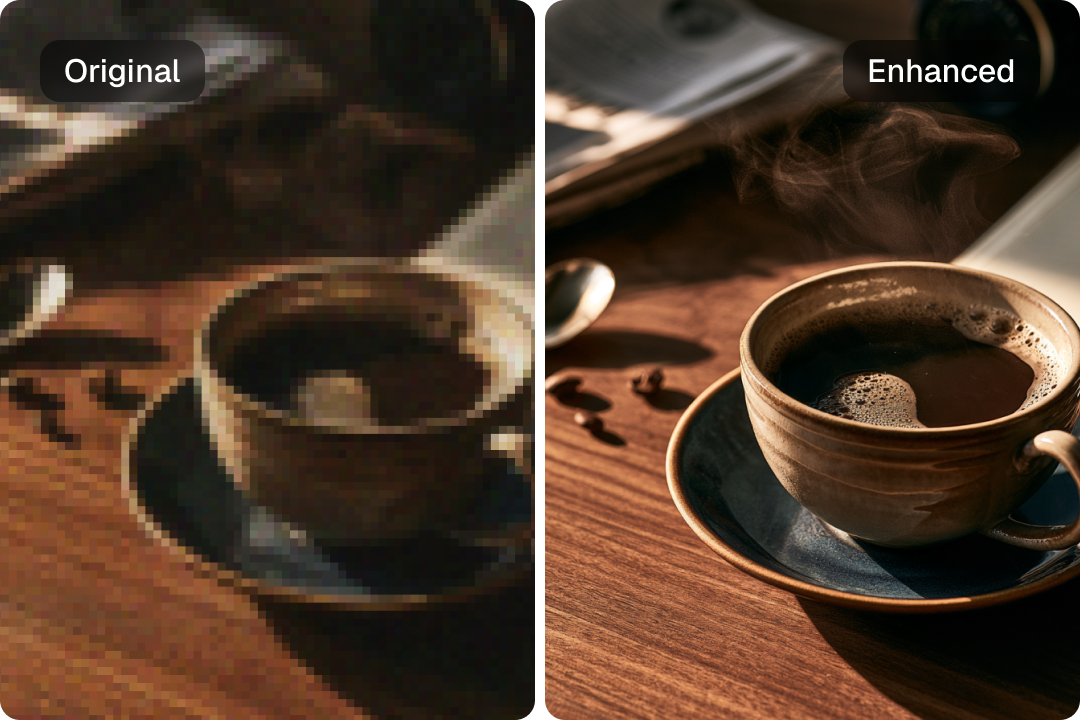
2× means twice the width and twice the height. A 1280 × 720 source becomes 2560 × 1440, for four times as many pixels overall. The output has larger dimensions; how much clearer it looks depends on the original material.
Try it in three steps
- Add your media. Import the video or image you want to enhance into CinLink.
- Describe the enhancement. Ask for 2× upscaling and noise reduction. Name the clip or image you mean when your project contains several files.
- Review and save. Compare the result with the original, then save your enhanced MP4 or PNG, or continue editing in the workspace.
For a video you plan to reuse in a larger project, make the request more specific:
Upscale this archive clip to 2× and reduce visual noise. Keep the original audio, frame rate, and aspect ratio, and export the enhanced video as an MP4.
These prompts are starting points. Choose a representative clip or image first so you can judge the result before applying the same approach to more of your material.
Keep working after enhancement
Enhancement can be one step in a wider edit. After reviewing the picture, you can keep working in CinLink to add captions or crop the clip for its next use. Our AI Subtitle Generator page covers captioning, and the Long Video to Shorts page covers repurposing longer footage.
If you're new to the workspace, read What Is CinLink, and What Can It Do? for an introduction. For a broader repurposing example, see our sports podcast clipping guide.
What to expect from the result
AI enhancement can reduce noise and improve how media looks at a larger size. It cannot reliably recover details lost to severe blur or heavy compression. A larger output is not a guarantee of restored detail.
Keep your original file and compare the versions at the size you intend to use. Check small text, faces, and detailed textures; for video, also watch moving sections. If the source is heavily damaged, a less ambitious crop or a different source file may serve the project better.
Explore the new enhancer
Visit the AI Video & Image Enhancer page to explore the original-and-enhanced comparisons and see examples for social videos, product images, older footage, and illustrated media.
Download CinLink, bring one video or image, and ask for a clearer starting point for your next project. You can find more product news and practical workflows on the CinLink Blog.