

Point to the Part That Matters
Select a specific moment or a continuous section of your video. The timestamp stays attached to your request, so CinLink knows where the change belongs.
One moment or one section, attached to each request.
Select a moment or a section of your video, describe the change, and let CinLink apply it. Review the result and keep refining.


 Export





 00:41.07 / 01:17.14


Choose where to edit, say what you want, and keep the result moving forward.
Select a specific moment or a continuous section of your video. The timestamp stays attached to your request, so CinLink knows where the change belongs.
One moment or one section, attached to each request.
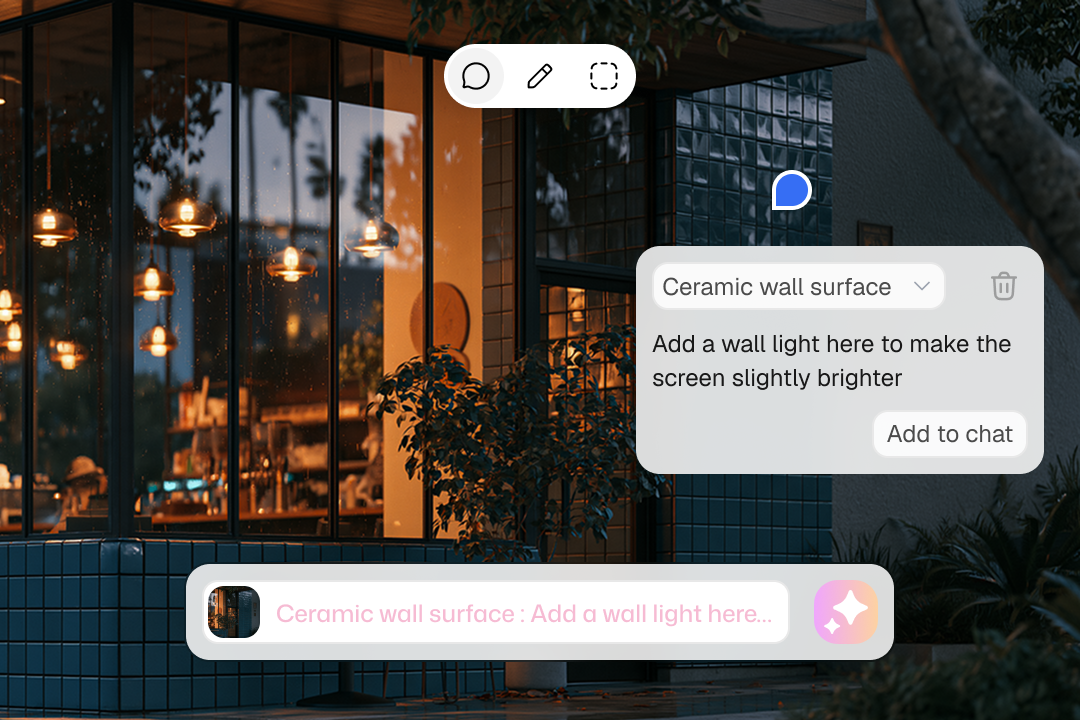
Tell CinLink what you want to adjust, then send the request with its video reference. CinLink applies supported edits to the selected part.
“Make this section a little brighter.”
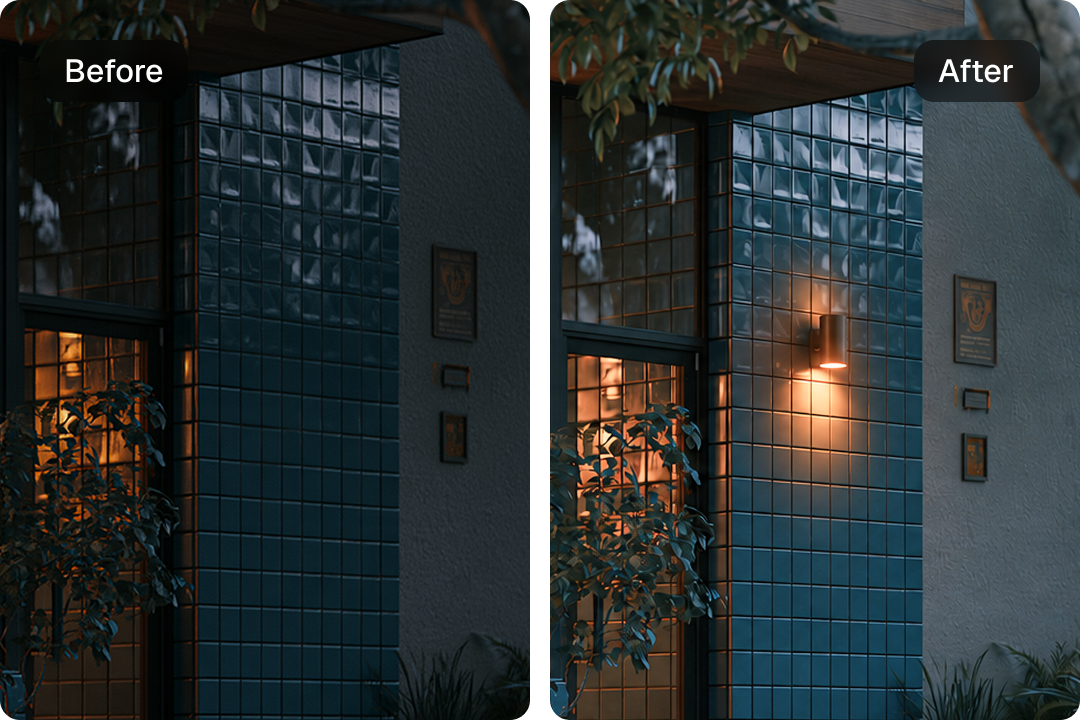
Your request and timestamp stay in the conversation. Return to the referenced section, check the update, and ask for another adjustment when needed.
“Make it a little less bright.”
Select a moment. Send your request. Review what changed.

Pause at a specific moment or select a continuous section on the timeline.

Write what you want to change, then send your request with the video timestamp attached.

Check the result, return to the selected moment, and ask for another adjustment if needed.
Bring a clear request to the video you are already working on.

Point to a product shot that needs attention and describe the change in context.

Return to a particular explanation or demonstration and refine that part of the lesson.

Select the section you want to polish and keep each request tied to the right moment.

Locate the passage you want to revisit, then review the update in the conversation.
Quick answers about revising videos with CinLink.


A video annotation connects your editing request to a specific moment or a continuous section of your video. Select the location, describe the change, and send it to CinLink.
Yes. Add an annotation at the playhead for a specific moment, or select a continuous section to include its start and end times. Each request can include one moment or one section.
No. Your annotation stays as a draft until you send it. CinLink starts processing the editing request after you send it.
Annotations tell CinLink where a change belongs. The changes it can apply depend on the editing tools available in your version of CinLink.
Your request, video reference, and timestamp stay in the conversation. The draft marker disappears from the timeline after you send the request. Click the timestamp in the conversation to return to the referenced moment or section.
Open CinLink on your computer and check the editing tools available in your version. Availability can vary by platform and release.
Bring your video. Select a moment. Tell CinLink what you want to change.