


@Daily Vlog0807.mp4 Focus on showcasing the product’s key features.

Describe the clips you want. Find highlights, add subtitles, and refine the results in one CinLink desktop workflow.
What would you like to create?
@Daily Vlog0807.mp4 Focus on showcasing the product’s key features.
Building your workflow
The video is ready: High Definition Version.mp4
Give each strong moment its own short video, with subtitles and a final review before you share.
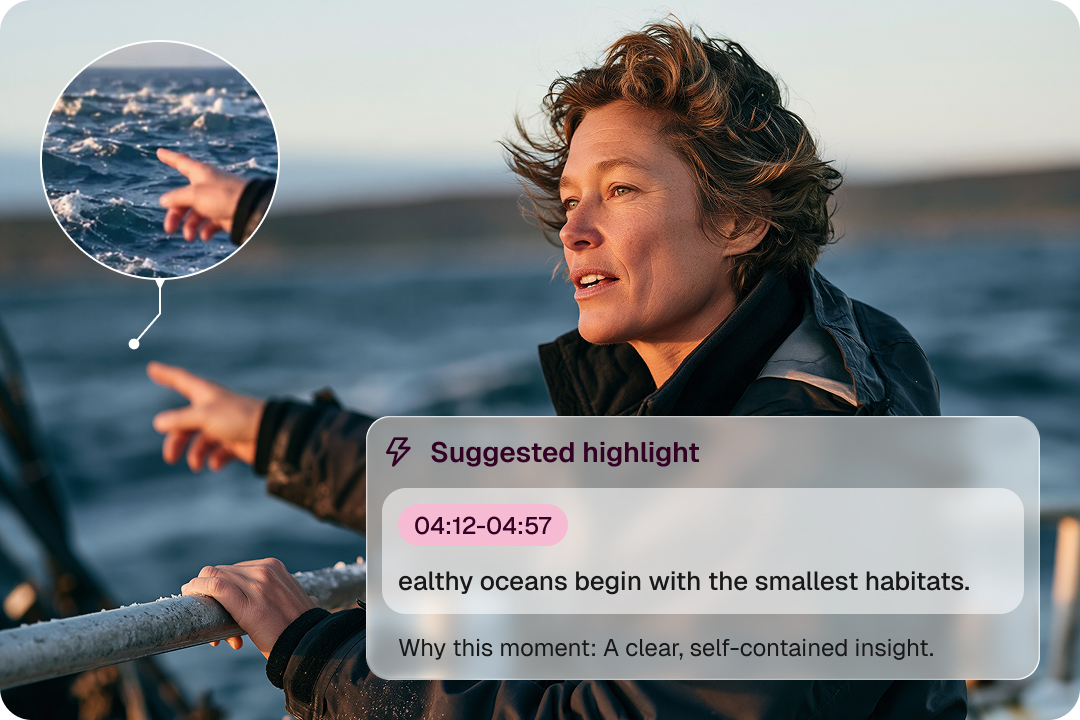
Find moments worth sharing with the help of transcripts and summaries.
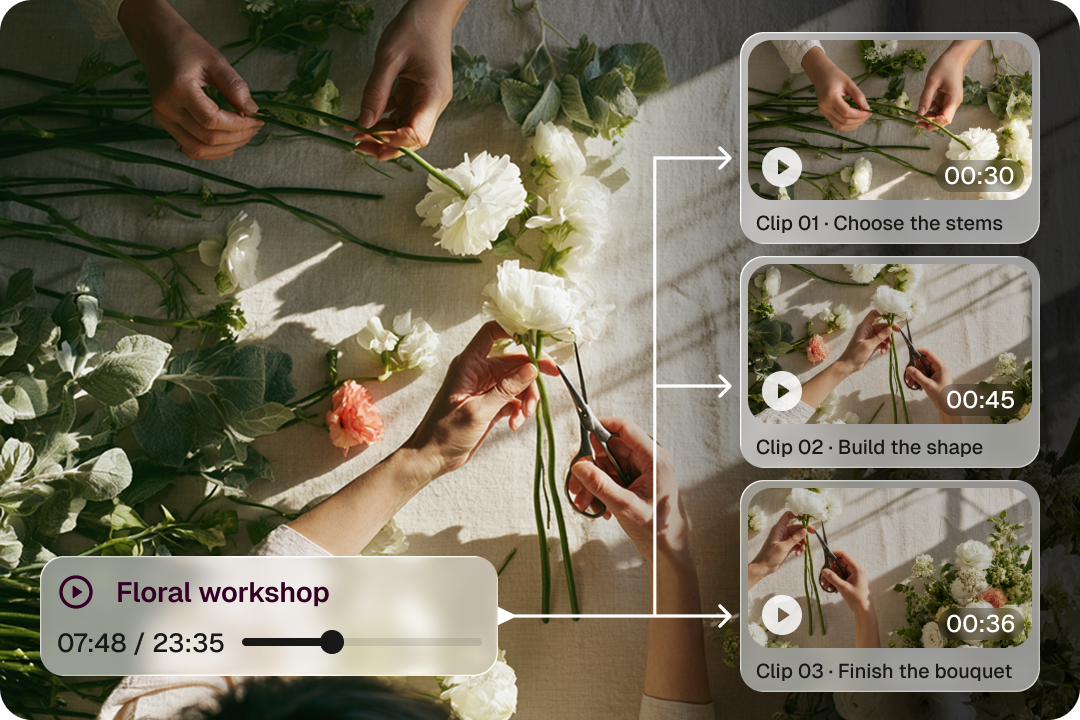
Turn selected moments into compact edits for different channels and audiences.
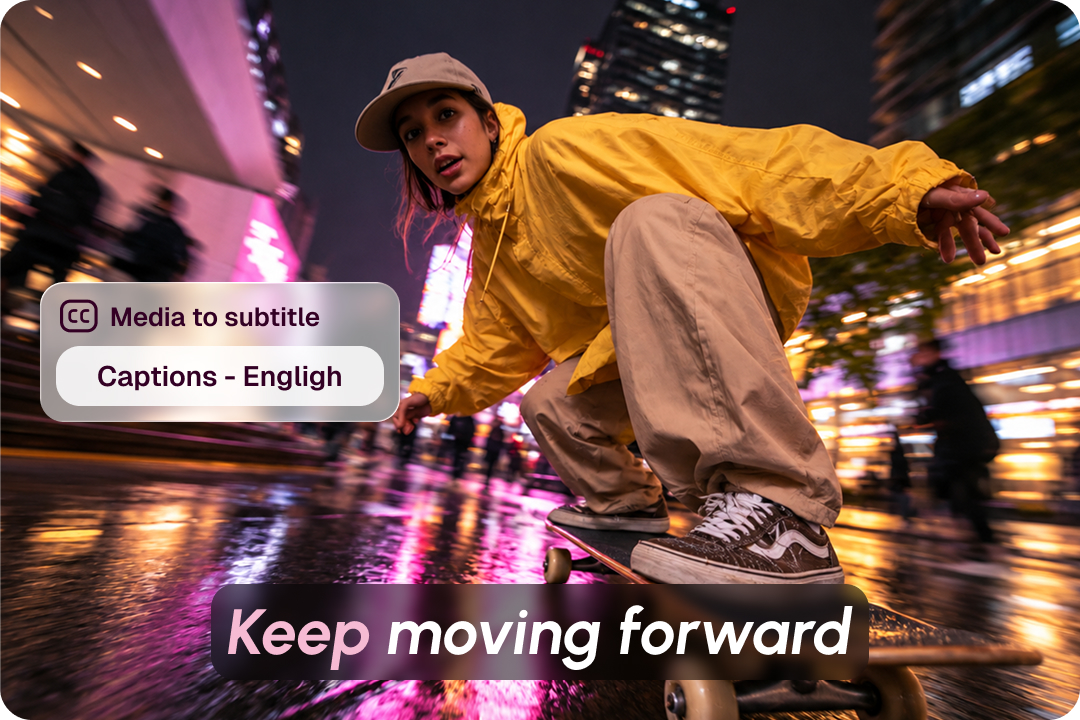
Create readable captions and refine the wording or style before export.
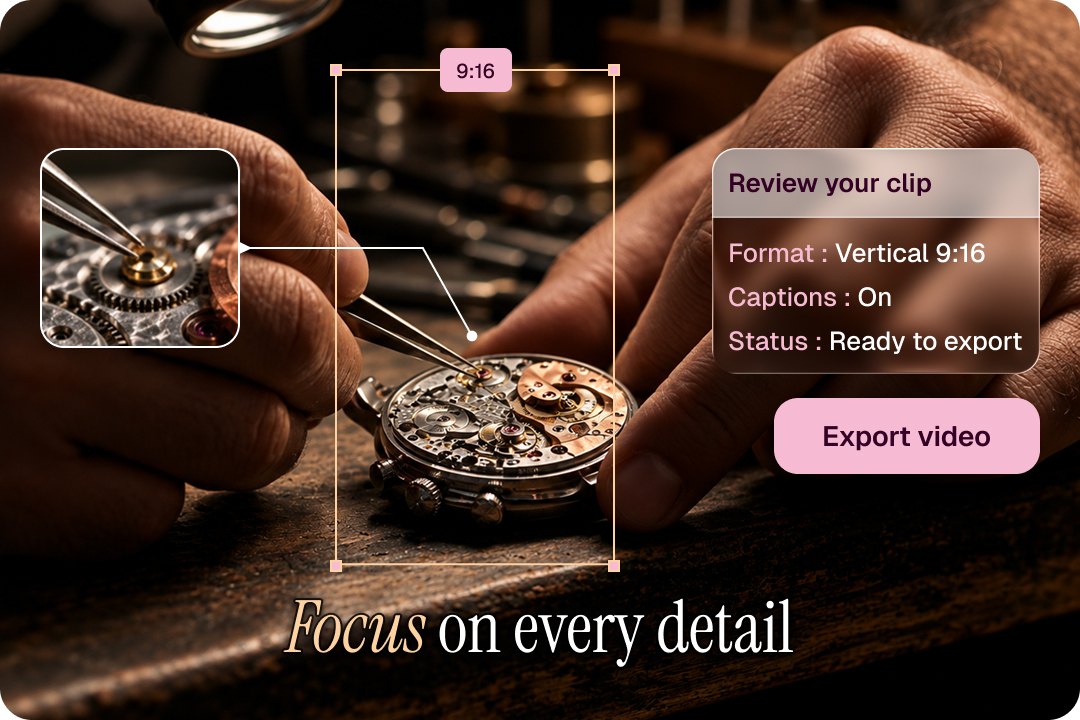
Review the proposed clips, adjust the result, and export only when it is ready.
Start with your recording, describe the clips you need, and review the suggested moments before refining and exporting.

Start with the media you already have.

Describe the topic, length, and format.

Read the reasons and choose your clips.

Adjust the cut and subtitles, then export.
Bring highlight selection, clip creation, subtitles, and review together in one desktop workflow.
| Capability | CinLink | Basic online trimmer | Traditional editor |
|---|---|---|---|
| AI highlight suggestions | Yes | Varies | Usually manual |
| Natural-language requests | Yes | Varies | Usually manual |
| Subtitle workflow | Built in | Varies | Separate steps |
| Translation workflow | Built in | Varies | Separate tools or plugins |
| Review and refine results | Yes | Basic | Yes |
| Primary workflow | Desktop workspace | Browser utility | Manual timeline editing |
Turn conversations, lessons, and presentations into focused clips that give each key idea room to stand on its own.

Turn a memorable exchange into a focused, shareable clip.

Bring a strong answer or fresh perspective into its own short video.

Pull out practical takeaways for people who missed the full session.

Make a key explanation easier to revisit as a short lesson.

Give a useful feature or workflow its own focused walkthrough.
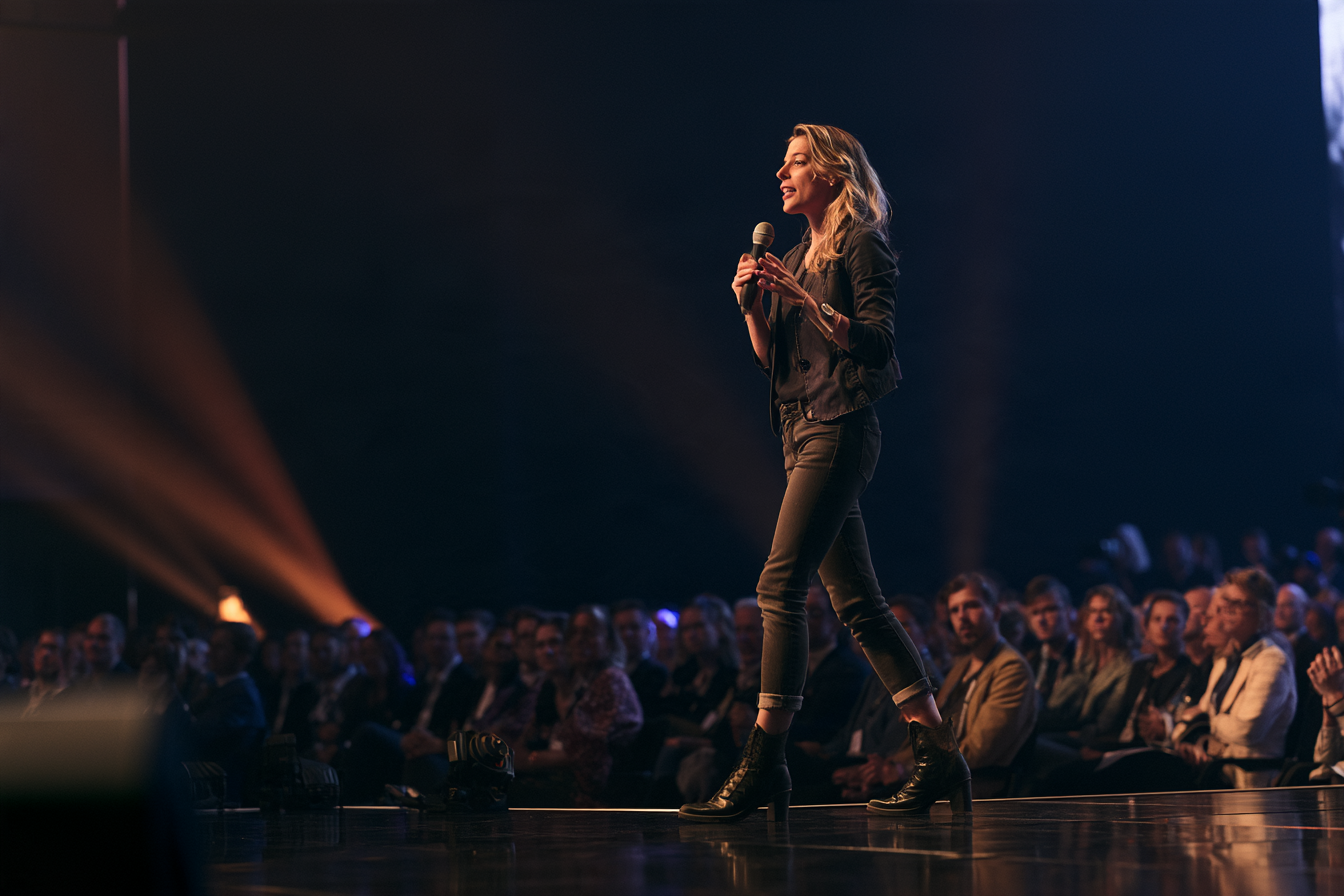
Share a standout insight from a longer talk or panel.
Add subtitles, prepare another language version, or return to the source to find your next clip.
 Media to subtitle
Make the spoken words readable and refine the captions before export.
 Translate media
Prepare the selected content for another language.
 Narrated video
Continue from the same source when preparing versions for different audiences.
 Summarize media
Revisit the context and locate the part you want to work on next.
Learn how CinLink finds moments, creates clips, and keeps you in control before export.
An AI video clipper helps identify moments in a longer recording and turn them into shorter videos. CinLink brings highlight selection, clip creation, subtitles, and review into one desktop workflow.
Yes. Describe the moments or topics you want to highlight, then create multiple short clips from the same recording. Review each clip and choose which ones to export.
Yes. Generate subtitles for your clips, then review the wording and adjust their appearance before export.
Yes. Review the suggested moments, refine the cuts and subtitles, and decide what to keep. You choose which clips are ready to export.
Podcasts, interviews, webinars, courses, product demos, and event recordings are useful starting points. Look for recordings with clear topics, complete answers, or distinct moments that can work as individual clips.
Yes. CinLink is a desktop app available for macOS and Windows. Download the version for your computer, add your video, and describe the clips you want to create.
Download CinLink, add your media, and describe the clips you want to create.

